Call Us: +91-7042640351, 9891868324

How Much SSD Storage Is Enough for an HP Laptop?
By Admin | 09 Oct 2026
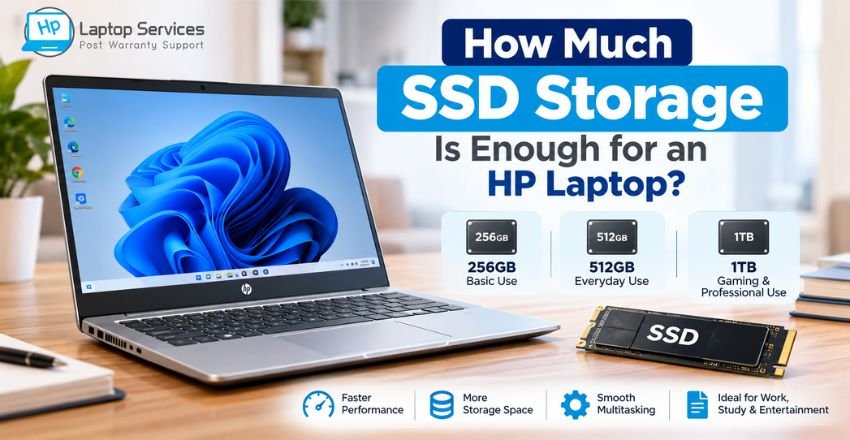
Choosing the right storage capacity is an important decision when buying or upgrading a laptop. If you are wondering how much SSD storage is enough for an HP laptop, the answer depends on how you use your device. A student who mainly browses the internet and works on documents will have different storage requirements from a professional who works with large files, photographs, videos, or games.
An SSD, or Solid State Drive, can make an HP laptop feel significantly faster than a traditional hard disk drive (HDD). It can improve boot times, application loading, file access, and overall system responsiveness. However, choosing a larger SSD does not automatically mean you need it. The right capacity should match your workload, budget, and future storage requirements.
Quick Answer: How Much SSD Storage Do You Need?
For most HP laptop users, 512GB SSD storage is a good balance between capacity, performance, and cost.
Here is a simple guide:
- 128GB: Basic browsing and very light use
- 256GB: Students, browsing, documents and office work
- 512GB: Most students, professionals and everyday users
- 1TB: Gamers, creators and users with large files
- 2TB+: Video editing, professional workloads and extensive storage
Keep in mind that the usable storage shown in Windows will be lower than the advertised capacity because some space is occupied by the operating system, recovery files, applications, and system data.
What Is SSD Storage?
An SSD is a storage device that uses flash memory to store your operating system, applications, documents, photos, videos, and other files. Unlike an HDD, an SSD has no traditional spinning disks or mechanical read/write heads.
This allows an SSD to provide faster data access and generally better responsiveness.
For an HP laptop, moving from an HDD to an SSD can result in noticeably faster Windows startup, quicker application launches, and smoother file operations, provided the laptop supports the appropriate SSD type.
However, storage capacity and SSD speed are two different things. A 1TB SSD provides more storage than a 512GB SSD, but capacity alone does not determine the overall performance of the drive.
HP Laptop SSD Storage: Which Capacity Is Right?
Your ideal HP laptop SSD storage depends primarily on what you do on your laptop.
256GB SSD: Suitable for Basic Users
A 256GB SSD can be enough if you mainly use your HP laptop for:
- Web browsing
- Microsoft Office
- Online classes
- Basic applications
- Documents and PDFs
- Light entertainment
However, 256GB can become restrictive over time. Windows, applications, temporary files, downloads, photos, and videos can gradually consume available space.
If your budget allows, choosing 512GB can provide more flexibility for future use.
512GB SSD: The Best Choice for Most Users
For many people, a 512GB SSD is the practical middle ground.
It provides enough space for Windows, commonly used software, work documents, photographs, and other personal files without requiring frequent storage management.
A 512GB drive is particularly suitable for:
- College and school students
- Office professionals
- Remote workers
- Business users
- General home users
- People who store moderate amounts of photos and videos
If someone asks how much SSD storage is enough for an HP laptop for everyday use, 512GB is generally a sensible starting point.
1TB SSD: Better for Heavy Storage Users
A 1TB SSD is worth considering if you regularly work with large files or want additional room for future storage needs.
It can be useful for:
- Video editing
- Photography
- Graphic design
- Gaming
- Large software installations
- Large media collections
- Professional projects
A 1TB SSD also reduces the need to constantly move files to external storage or cloud services.
HP Laptop Storage Options You Should Consider
Modern HP laptops can use different storage configurations depending on the model. Some systems may support an M.2 NVMe SSD, while older or specific models may use a 2.5-inch SATA drive.
Therefore, before purchasing an SSD, check your exact HP laptop model and its supported storage interface.
Your HP laptop storage options may also depend on whether the laptop has:
- An accessible M.2 slot
- A SATA drive bay
- A replaceable SSD
- A second storage slot
- Manufacturer-specific hardware limitations
Checking compatibility before buying an SSD can prevent purchasing a drive that cannot be installed in your particular laptop.
When Should You Consider an SSD Upgrade for HP Laptop?
An SSD upgrade for HP laptop can be useful when your existing storage is consistently running out or your laptop still uses an older HDD.
Some common signs that an upgrade may be worthwhile include:
- Windows frequently shows low-storage warnings
- Applications take longer to open
- The existing drive is nearly full
- The laptop uses an old mechanical HDD
- You need more space for work files
- You regularly use external storage because the internal drive is insufficient
Before upgrading, important files should be backed up. If the operating system is being migrated to a new drive, the process should also be performed carefully to avoid data loss.
Is 256GB Enough for an HP Laptop?
For basic users, 256GB can be enough. However, it may not be ideal if you install many applications or store large media files locally.
If your laptop is mainly used for browsing, documents, online meetings, and basic office work, 256GB can work well.
For longer-term flexibility, however, 512GB is usually a more comfortable choice.
Is 512GB Enough for an HP Laptop?
For most everyday users, yes.
A 512GB SSD can comfortably handle Windows, productivity applications, documents, personal files, and a moderate collection of photographs and videos.
Gamers and content creators may require more space because modern games, video projects, raw photographs, and other media files can be very large.
How Much Storage Do You Need for Gaming?
Gaming storage requirements vary considerably. Modern games can occupy a significant amount of disk space, and installing several large games can quickly consume a smaller SSD.
For occasional gaming, 512GB may be workable if you manage your installed games carefully.
For regular gaming, a 1TB SSD offers considerably more flexibility.
Gamers should also remember that SSD capacity is separate from other hardware requirements such as RAM, graphics processing capability, and processor performance.
How Much Storage Do Students and Office Users Need?
Students and office professionals generally have moderate storage requirements.
Documents, presentations, spreadsheets, PDFs, browser data, and productivity applications usually do not require enormous amounts of storage.
For these users:
256GB: Suitable for basic requirements.
512GB: Recommended for comfortable everyday use.
1TB: Useful if the laptop also stores large media files, projects, software, or other data.
This makes 512GB a practical choice for many users who want to avoid upgrading again in the near future.
What About Photos and Videos?
Photos and videos can consume considerably more storage than documents.
If you regularly download high-resolution photographs, record videos, or edit media files, a 1TB SSD may be more appropriate.
Content creators should also consider maintaining backups. An SSD should not be treated as the only copy of important professional or personal files.
External drives and reputable cloud-storage services can provide additional backup options.
HP Laptop Storage Upgrade: What to Check First
Before starting an HP laptop storage upgrade, check the exact model number of the laptop.
Important factors include:
- Supported SSD type
- Available M.2 or SATA interface
- Maximum supported storage capacity
- Existing drive configuration
- Operating system installation or cloning requirements
- Important data backup
- Physical installation requirements
The process can vary significantly between HP laptop models. Some laptops allow relatively straightforward storage replacement, while others may have more complicated internal layouts.
If you are unsure about compatibility or installation, professional assistance can help reduce the risk of hardware or data-related problems.
SSD Capacity vs Available Space
One common misunderstanding is that a laptop advertised with 512GB will show exactly 512GB of free space in Windows.
The usable capacity is lower because storage manufacturers and operating systems calculate capacity differently, and the laptop also reserves space for Windows, recovery partitions, system files, applications, and other data.
Therefore, it is a good practice to leave some free space rather than filling an SSD completely.
Regularly removing unnecessary downloads, temporary files, unused applications, and duplicate media can help maintain sufficient free space.
How to Choose the Right SSD for Your HP Laptop
If you are still unsure which capacity to choose, consider your current usage and how it may change over the next few years.
Choose 256GB if you primarily browse the web, attend online classes, work with documents, and use cloud storage.
Choose 512GB if you want a balanced option for work, study, entertainment, applications, and personal files.
Choose 1TB if you regularly work with large files, games, photographs, videos, or professional software.
For demanding professional workloads, 2TB or more may be justified.
The best choice is not necessarily the largest SSD available. It is the capacity that gives you enough working space while fitting your budget and laptop's hardware compatibility.
Conclusion
So, how much SSD storage is enough for an HP laptop? For most users, 512GB is the sweet spot. It provides considerably more flexibility than 256GB without the additional cost and capacity being unnecessary for typical everyday workloads.
However, users with large media libraries, demanding software, gaming requirements, or professional creative workloads should consider 1TB or more.
If you are unsure about your HP laptop's compatible storage, experiencing low-storage problems, or considering an HP laptop storage upgrade, professional inspection can help determine the appropriate SSD and installation method.
For assistance with HP laptop storage, hardware upgrades, troubleshooting, and related laptop services, contact HP Laptop Service Centres at +91-7042640351 or 9891868324.
Frequently Asked Questions
1. Does a larger SSD improve HP laptop performance?
A larger SSD mainly provides more storage space. It does not automatically make an HP laptop faster. SSD speed, processor, RAM, and system configuration also affect performance.
2. How much free space should I keep on my HP laptop SSD?
It is advisable to keep a reasonable amount of free space available rather than filling the SSD completely. This gives Windows and applications room for temporary files, updates, and normal operations.
3. Can I use an external SSD with my HP laptop?
Yes, an external SSD can be connected through a compatible USB port. It is useful for storing large files, creating backups, or expanding storage without replacing the internal drive.
4. What happens if my HP laptop SSD becomes full?
A nearly full SSD can make storage management difficult and may affect certain system operations. You may need to remove unnecessary files, move data to another drive, use cloud storage, or consider a storage upgrade.
5. Should I upgrade my HP laptop SSD or buy a new laptop?
If the laptop still meets your performance requirements and supports a storage upgrade, replacing or expanding the SSD can be a cost-effective option. A new laptop may be more suitable if the system has several outdated components or does not support the required upgrade.
6. Can I keep my old files when upgrading the HP laptop SSD?
Yes. Depending on the upgrade method, data can potentially be transferred or the existing drive can be cloned to the new SSD. A complete backup should be taken before starting the process.
7. Does HP laptop SSD capacity affect battery life?
SSD technology generally uses less power than traditional mechanical hard drives, but the effect of choosing 256GB, 512GB, or 1TB capacity on battery life is usually not the main factor. Display, processor, battery condition, and workload have a much larger influence.
References
- https://support.hp.com/gb-en/document/ish_9756213-9756262-16
- https://support.hp.com/gb-en/document/ish_1997135-1444257-16
- https://support.microsoft.com/en-us/windows/experience/storage-filemanagement/storage-settings-in-windows
- https://support.microsoft.com/en-us/windows/experience/storage-filemanagement/free-up-drive-space-in-windows
Author Bio
Hi, I'm Pooja, a technical content writer passionate about creating informative and easy-to-understand content on laptop repair, troubleshooting, and technology. I specialize in simplifying complex technical topics into practical guides that help users diagnose and resolve common laptop problems with confidence. Through the HP Laptop Service Centres blog, I share well-researched articles, maintenance tips, and repair insights based on trusted technical resources and real-world industry knowledge. My aim is to deliver accurate, helpful, and user-focused content that empowers readers to make informed decisions about maintaining and repairing their HP laptops.
Recent Post
-
How Much SSD Storage Is Enough for an HP Laptop?
09 Oct 2026
-

-

-

-
Why Is My HP Laptop Screen Pink? Causes & Fixes
14 Aug 2026
-
How to Fix HP Laptop White Screen Issue
07 Aug 2026
-
Why Is Your HP Laptop Plugged In Not Charging?
03 Aug 2026
-
-
-
-
-

-

-

-

Looking For A Fast & Reliable Laptop Repair Service
We have professional technicians, fast turnaround times and affordable rates. Book Your Repair Job Today!
We specialize in all types of laptop services and provide reliable and quality door step service to our clients