Call Us: +91-7042640351, 9891868324

Why Is Your HP Envy x360 Touchscreen Not Responding? Causes and Fixes
By Admin | 22 Oct 2026
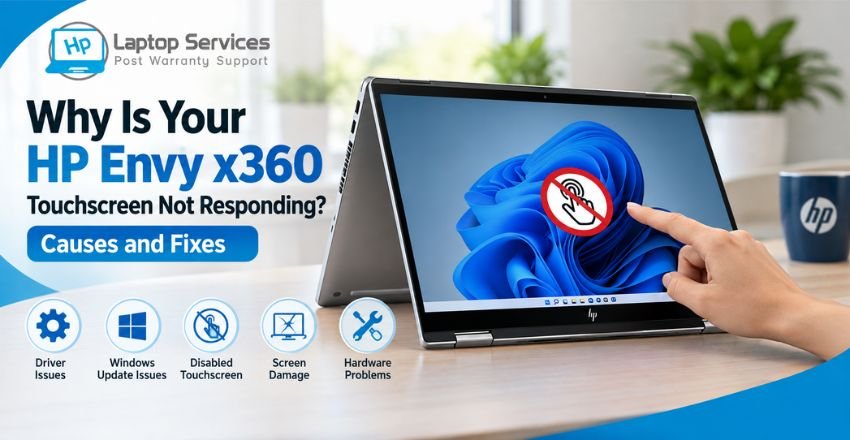
The HP Envy x360 is designed for flexible use, allowing you to switch between laptop and tablet modes. However, when the touchscreen stops responding, even simple tasks like opening applications, scrolling through pages, or taking notes can become frustrating.
If you are experiencing an HP Envy x360 touchscreen not responding issue, the cause could be a disabled touch input, an outdated driver, a Windows software problem, or a hardware fault. Fortunately, some touchscreen issues can be resolved at home without replacing any components.
In this guide, we explain the common causes, practical troubleshooting steps, and signs that indicate your laptop may need professional repair.
Why Is Your HP Envy x360 Touchscreen Not Working?
Before attempting a repair, it is important to understand what might be causing the problem. Here are some common reasons the touchscreen may stop working.
1. Touchscreen Driver Problems
Windows uses a touchscreen driver to communicate with the touch-sensitive display. If the driver becomes disabled, corrupted, or incompatible after a system update, your laptop may stop registering touch input.
You might notice that the display works normally with the keyboard and touchpad, but tapping or swiping with your finger has no effect.
2. Windows Update or Software Issues
Sometimes, a Windows update or a software configuration change can affect touchscreen functionality. If the problem started immediately after an update, a driver or compatibility issue may be responsible.
However, the timing alone does not confirm that Windows caused the problem. Hardware and firmware issues can produce similar symptoms.
3. Disabled Touchscreen in Device Manager
The touchscreen may be disabled in Windows Device Manager. When this happens, the display can continue showing images normally while ignoring finger input.
Checking the Human Interface Devices section is a useful first step before considering more complicated repairs.
4. Dirt, Moisture, or Screen Damage
Dust, oily fingerprints, moisture, and certain screen protectors can interfere with touch input. A damaged display or digitizer can also cause unresponsive areas, missed touches, or inconsistent responses.
If the laptop has been dropped or exposed to liquid, avoid pressing the screen repeatedly or attempting to open the display assembly yourself.
5. Touchscreen Hardware Failure
If software troubleshooting does not resolve the issue, the problem could involve the digitizer, display assembly, internal connections, or another hardware component.
A professional diagnosis can help identify the faulty part before you spend money on a replacement.
How to Fix HP Envy x360 Touch Screen Not Responding
Try the following steps in order. After each step, test the touchscreen to see whether it works again.
Step 1: Restart Your Laptop
A restart can resolve temporary Windows glitches affecting touch input.
- Save your work and close open applications.
- Open the Start menu.
- Select Power and then Restart.
- After Windows loads, test the touchscreen.
If the touchscreen remains unresponsive, continue with the next step.
Step 2: Clean the Touchscreen
Turn off your laptop and disconnect the charger. Use a clean, soft microfiber cloth to gently remove fingerprints and dust from the display.
Make sure the screen is completely dry before turning the laptop back on. Avoid spraying liquid directly onto the display or using harsh cleaning chemicals.
If you use a screen protector, check whether it is damaged, lifting at the edges, or interfering with touch input. Remove it only if the manufacturer permits safe removal.
Step 3: Enable the Touchscreen in Device Manager
If the touchscreen has been disabled, enabling it may restore normal operation.
- Right-click the Windows Start button.
- Open Device Manager.
- Expand Human Interface Devices.
- Look for HID-compliant touch screen.
- Right-click the device and select Enable device if that option is available.
Test the screen again.
If the device is already enabled, do not assume it is working correctly. Its driver may need to be reinstalled or the hardware may require further testing.
Step 4: Reinstall the Touchscreen Driver
If the touchscreen still does not work, reinstalling its device driver may help.
- Open Device Manager.
- Expand Human Interface Devices.
- Right-click HID-compliant touch screen, if listed.
- Select Uninstall device.
- Restart your laptop.
Windows may reinstall the device driver automatically during startup. If the touchscreen device is missing, check your laptop's specifications and consult HP Support for model-specific guidance.
Avoid downloading drivers from unfamiliar third-party websites. Use official HP support resources and select software compatible with your exact laptop model and operating system.
Step 5: Install Available Windows Updates
An outdated or incompatible driver can sometimes affect touch functionality.
Open Settings, select Windows Update, and check for available updates. Review optional driver updates where available, install appropriate updates, and restart the laptop.
If the issue began after a particular update, note which update was installed. Avoid uninstalling updates or making major system changes without first understanding the possible consequences.
Step 6: Run HP Hardware Diagnostics
HP provides hardware diagnostic tools that can help identify touchscreen faults.
On supported models, you can access HP PC Hardware Diagnostics UEFI by shutting down the laptop, turning it on, and repeatedly pressing Esc to open the Startup Menu. Press F2 to access diagnostics, then look for the touchscreen test under Component Tests.
The available tests and menus may vary by model.
If a touchscreen test fails, record the displayed failure information. This can help a technician identify the issue. If the tests pass but the touchscreen remains unresponsive in Windows, further software or hardware investigation may be necessary.
What If the HP Envy x360 Touchscreen Still Does Not Work?
If the basic fixes do not help, pay attention to the symptoms.
The entire touchscreen is unresponsive: The issue may involve a driver, firmware, digitizer, or display connection.
Only part of the screen responds: A damaged or faulty touch-sensitive layer may be responsible.
Touch input stops after waking from sleep: Power-management settings or driver issues may be involved.
The problem started after physical damage: The display assembly or internal connections may need inspection.
The touchscreen is missing from Device Manager: Check model specifications and software configuration before concluding that the hardware has failed.
Do not attempt to separate the display layers or replace internal components without the necessary tools and experience. The HP Envy x360 has different configurations across generations, so the correct repair procedure depends on the exact model.
HP Envy x360 Touchscreen Repair Services
If you have tried the recommended troubleshooting steps and the touchscreen remains unresponsive, professional diagnosis can help you determine whether the problem is software-related or requires hardware repair.
HP Laptop Service Centres provides assistance with touchscreen problems, display faults, driver-related issues, and other laptop repair concerns. Our technicians can assess your device and recommend a suitable solution based on its model and condition.
For an HP Envy x360 touchscreen not working issue that persists after troubleshooting, getting the device checked can help prevent unnecessary part replacements.
To discuss your laptop problem or arrange a service visit, call +91-7042640351 or 9891868324.
Conclusion
An HP Envy x360 touchscreen not responding does not automatically mean you need a new display. Restarting Windows, cleaning the screen, checking Device Manager, updating compatible drivers, and running hardware diagnostics can help identify the cause.
If the problem continues, professional inspection can determine whether the laptop needs software troubleshooting or a hardware repair. Identifying the actual cause first is the best way to avoid unnecessary expenses and choose the right solution for your HP Envy x360.
Frequently Asked Questions (FAQs)
1. Why does my HP Envy x360 touchscreen work intermittently?
Intermittent touch response can result from driver problems, software glitches, display connection issues, or a faulty digitizer. If restarting the laptop does not help, check for compatible driver updates and consider professional diagnosis.
2. Can a screen protector affect my HP Envy x360 touchscreen?
Yes, an incompatible, damaged, or poorly fitted screen protector may interfere with touch sensitivity. Check the accessory's compatibility with your specific model and inspect it for bubbles, lifting edges, or damage.
3. Why does my HP Envy x360 touchscreen stop working in tablet mode?
The issue may involve Windows mode settings, sensor-related functions, drivers, or hardware. Restart the laptop, install compatible updates, and check whether touch input works in normal laptop mode as well.
4. Can I fix an HP Envy x360 touchscreen problem without replacing the screen?
Yes. If the cause is a disabled device, a driver issue, or a temporary software glitch, troubleshooting may restore touchscreen functionality without replacing any hardware. A replacement is only necessary when testing confirms a hardware fault.
5. How much does it cost to repair an HP Envy x360 touchscreen?
The repair cost depends on the exact model, the type of touchscreen assembly, and whether the issue involves software, a connection, or damaged hardware. Request a diagnosis and quotation before approving a repair.
References
- https://support.hp.com/in-en/document/ish_4305073-3491276-16
- https://support.microsoft.com/en-us/windows/hardware/input-devices/enable-and-disable-a-touchscreen-in-windows
- https://support.microsoft.com/en-us/windows/hardware/input-devices/what-to-try-if-a-touchscreen-doesn-t-work-in-windows
Author Bio
Hi, I'm Pooja, a technical content writer passionate about creating informative and easy-to-understand content on laptop repair, troubleshooting, and technology. I specialize in simplifying complex technical topics into practical guides that help users diagnose and resolve common laptop problems with confidence. Through the HP Laptop Service Centres blog, I share well-researched articles, maintenance tips, and repair insights based on trusted technical resources and real-world industry knowledge. My aim is to deliver accurate, helpful, and user-focused content that empowers readers to make informed decisions about maintaining and repairing their HP laptops.
Recent Post
-
-
-

How Much SSD Storage Is Enough for an HP Laptop?
09 Oct 2026
-

-

-

-
Why Is My HP Laptop Screen Pink? Causes & Fixes
14 Aug 2026
-
How to Fix HP Laptop White Screen Issue
07 Aug 2026
-
Why Is Your HP Laptop Plugged In Not Charging?
03 Aug 2026
-
-

-
-
-

-

Looking For A Fast & Reliable Laptop Repair Service
We have professional technicians, fast turnaround times and affordable rates. Book Your Repair Job Today!
We specialize in all types of laptop services and provide reliable and quality door step service to our clients